A Chrome extension that reads PubMed abstracts, flags reports of adverse events, extracts the events and checks them against MedDRA, then puts a result card on every article for you to review. For a paper that needs a closer look, it reads the full article and extracts each individual case safety report in it, with the source sentence for every value.
The AI proposes, the reviewer decides. Nothing is ever hidden from you. Every card, including the ones the AI thinks are irrelevant, carries Agree and Disagree buttons, and every export records who reviewed what, when, and why.
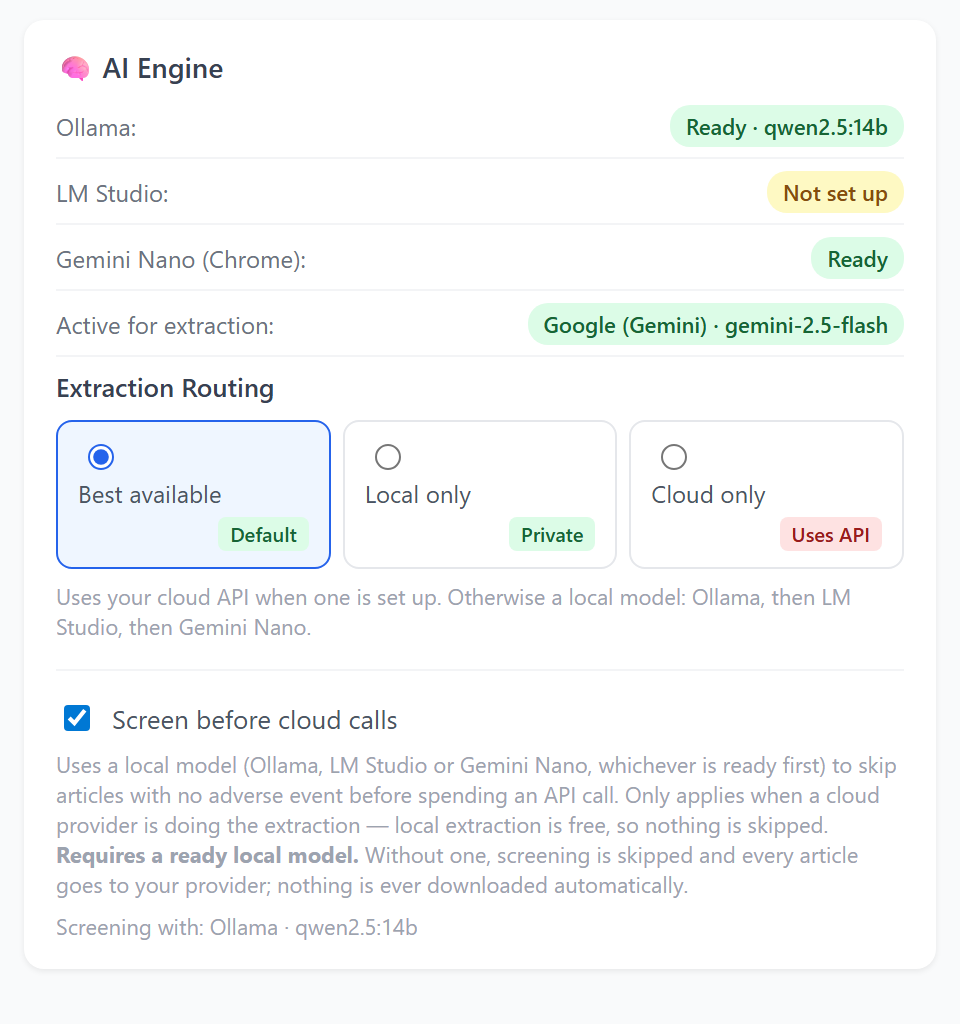
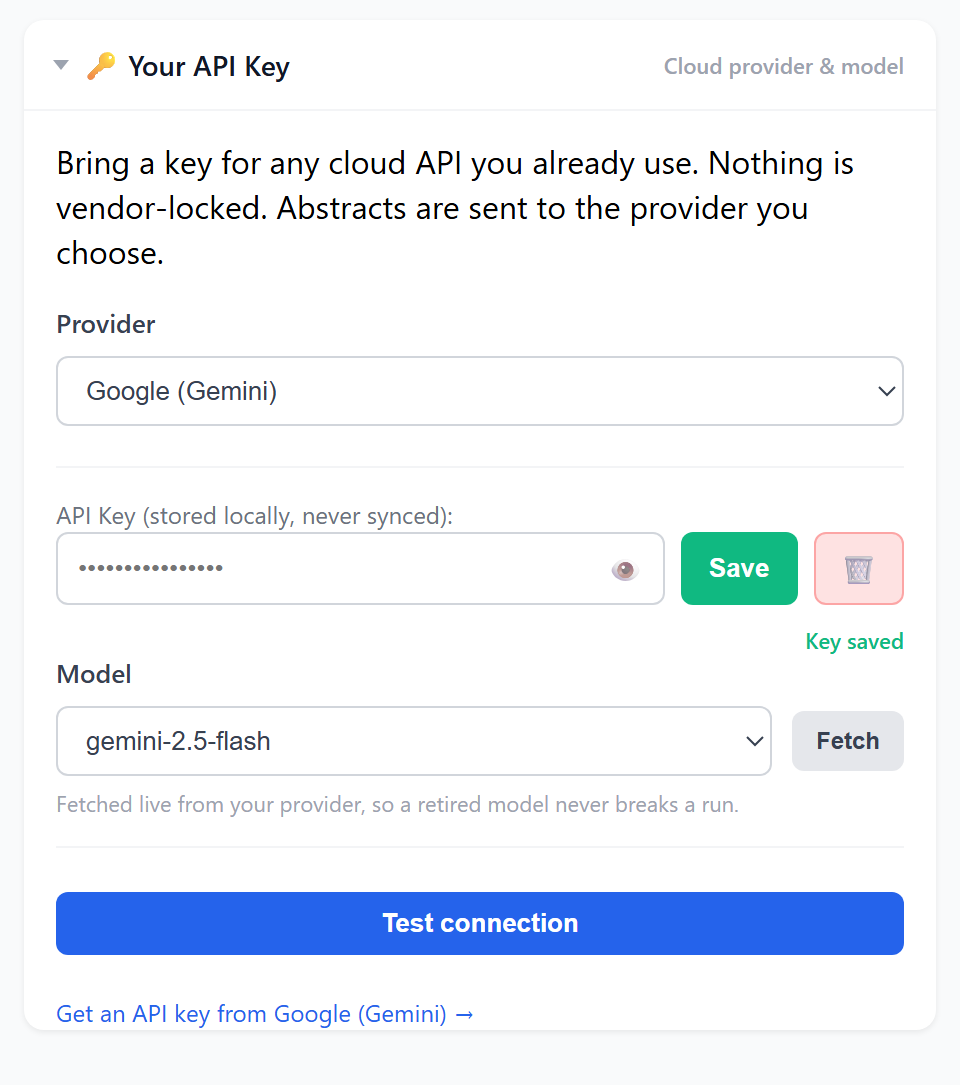
The AI Engine card, in the side panel's Settings tab. Screenshots on this page show sample data.
What each article gets
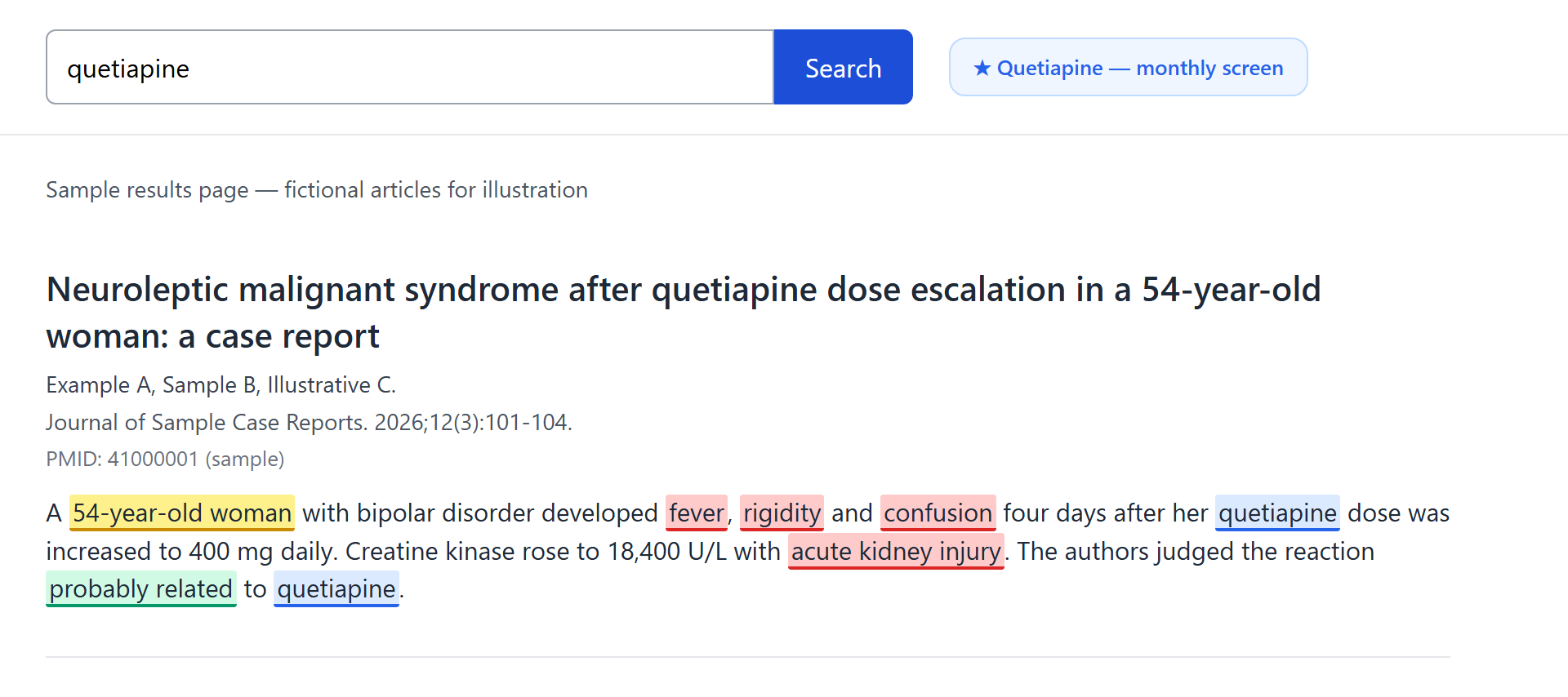
Whether it describes an identifiable individual patient (a potential ICSR), a group of patients, or no valid case.
Every adverse event mentioned, each tagged Serious or Non-Serious.
Whether each event term is codeable in MedDRA as written.
A confidence score and the model's reasoning in plain words.
Optionally, how well it answers a regulator's specific request.
It works on the page you are reading, or across an entire result set of thousands of articles.
What each full-text article gets
One case per identifiable patient the authors report first-hand. Patients cited from other publications are ignored.
The patient, suspect drugs, adverse events in the authors' words, medical history, concomitant medication and laboratory results.
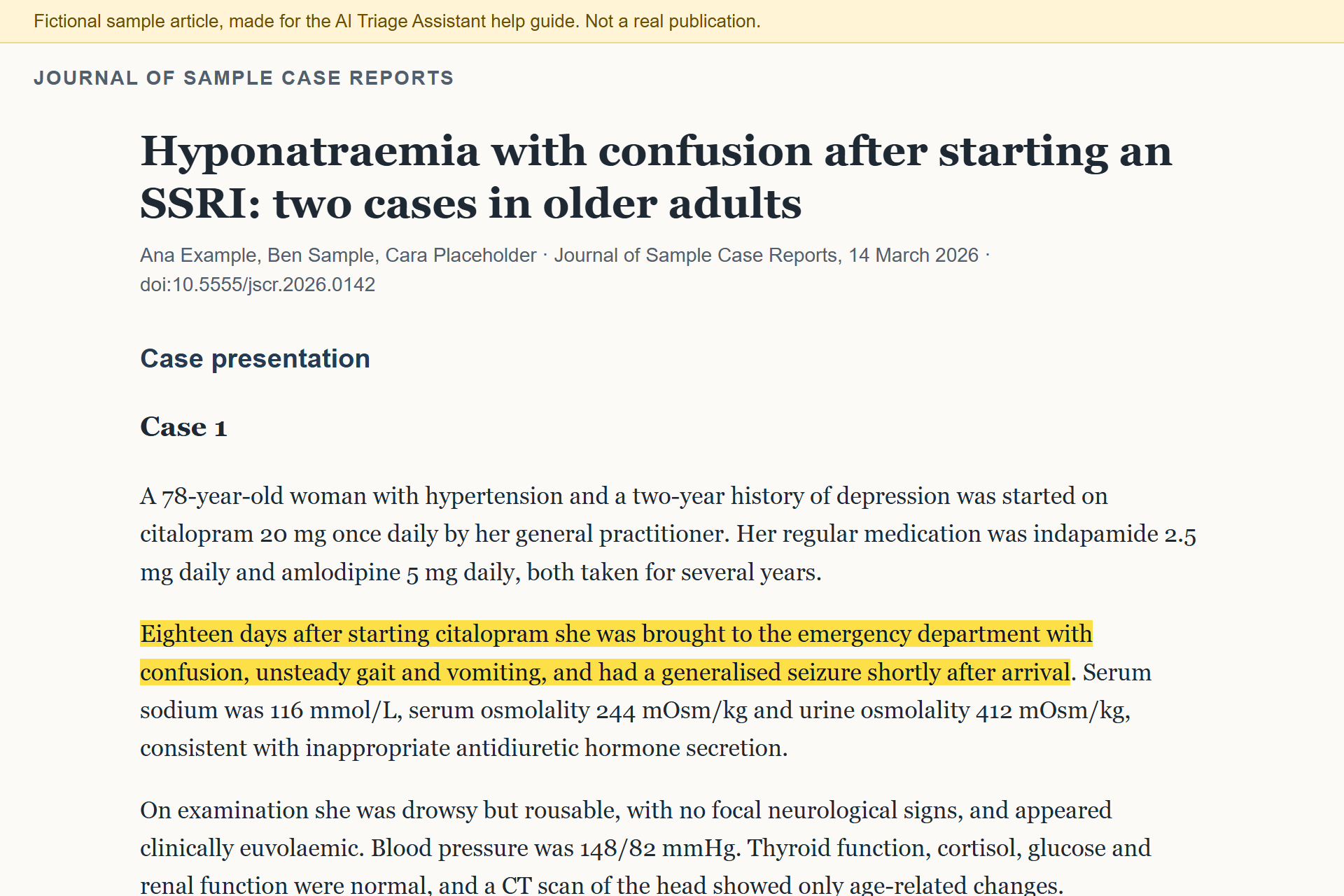
The sentence each value came from, checked against the article and highlighted on the page when you click it.
Editing, a reviewed mark under your name, and exports: an evidence PDF, a CIOMS-style summary, CSV and JSON.
Install from the Chrome Web Store and click Add to Chrome. There is no account and no sign-up. It works in desktop Google Chrome 116 or later on Windows, macOS, Linux and ChromeOS. The triage controls appear on PubMed search results pages; full-text reading works on any article, but only when you click the extension's icon on it.
To analyse articles you need at least one AI engine. You can have several; the extension uses the best one that is ready.
Engine
Cost
Where the abstract goes
What you need
Local model Ollama or LM Studio
Free
Nowhere. It stays on your computer.
Ollama or LM Studio installed, with a model your computer can run. See Local Model.
Gemini Nano Built into Chrome
Free
Nowhere. It stays on your computer.
22 GB free on the drive holding your Chrome profile; Windows 10/11, macOS 13+, Linux or a Chromebook Plus; more than 4 GB of video memory, or 16 GB RAM with 4+ CPU cores. A one-time download of a few gigabytes. Chrome decides when it is available, and doesn't always say why it isn't.
Your own AI key
Free tiers exist; otherwise billed by your provider
Permissions: the extension asks to store its settings and results on your computer, to open a side panel, to add one item to the right-click menu, and to read the tab you click its icon on. That last one covers only that tab, only after your click; it gives no access to the pages you browse. When you save an API key, Chrome asks you once to allow the extension to contact that provider's website, and only that one. Setting up Ollama or LM Studio asks the same for that program on your own computer, and opening a free full text from PubMed asks once for PMC.
First-time setup
Click the extension's icon in Chrome's toolbar. If you can't see it, click the puzzle-piece icon and pin AI Triage Assistant. A side panel opens on the right; click its Settings tab.
Look at the three engine rows at the top: Ollama, LM Studio and Gemini Nano (Chrome). Any one that says Ready is enough to triage for free, with nothing leaving your computer. If one is Ready, skip to step 4.
Using Ollama or LM Studio? Open Local Model, choose the program, click Fetch and Allow, pick a model, then Test connection (how).
Gemini Nano says Not installed: click Enable on-device AI (one-time download). You can close the panel; the download carries on.
Gemini Nano says Unavailable: Chrome doesn't give a reason; the Settings tab says where to look. Nothing else is blocked.
For more accurate results, add an AI key under Your API Key (how), and finish with Test connection. Several providers have a free tier. When you save, Chrome asks for permission to contact that provider: click Allow (what this means).
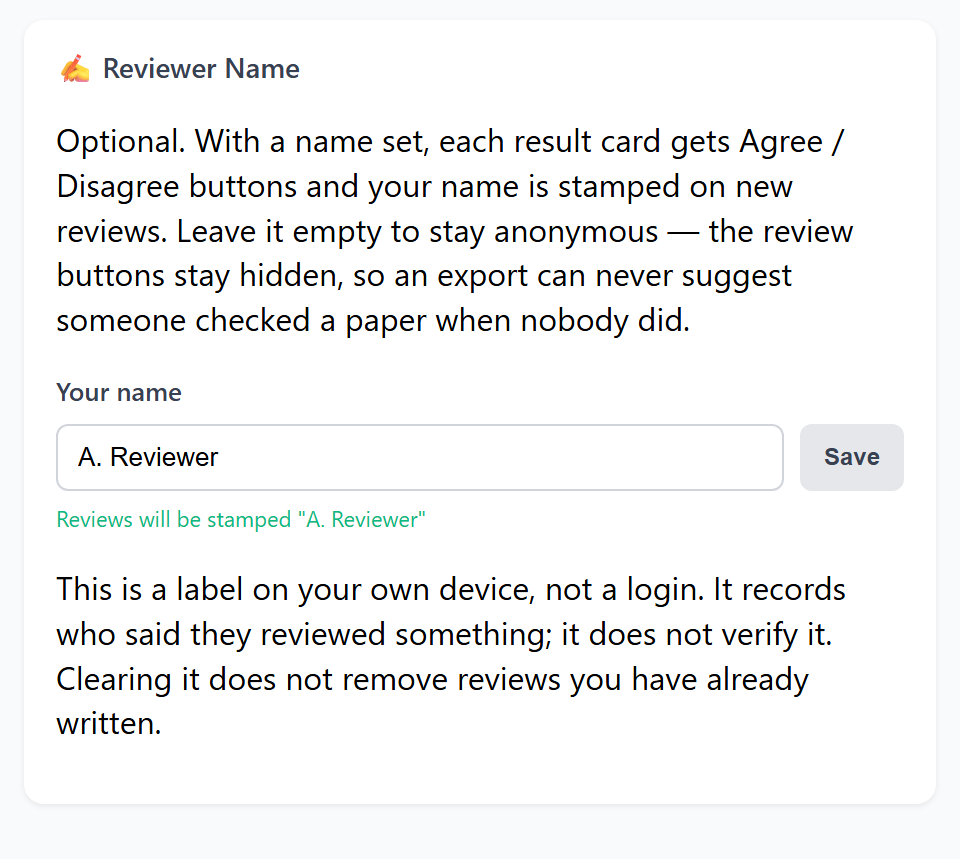
Under Reviewer Name, type your name and click Save. Without a name, the review buttons stay hidden.
Go to PubMed, run a search, and click ⚡ Start AI Triage in the panel at the bottom-right of the page.
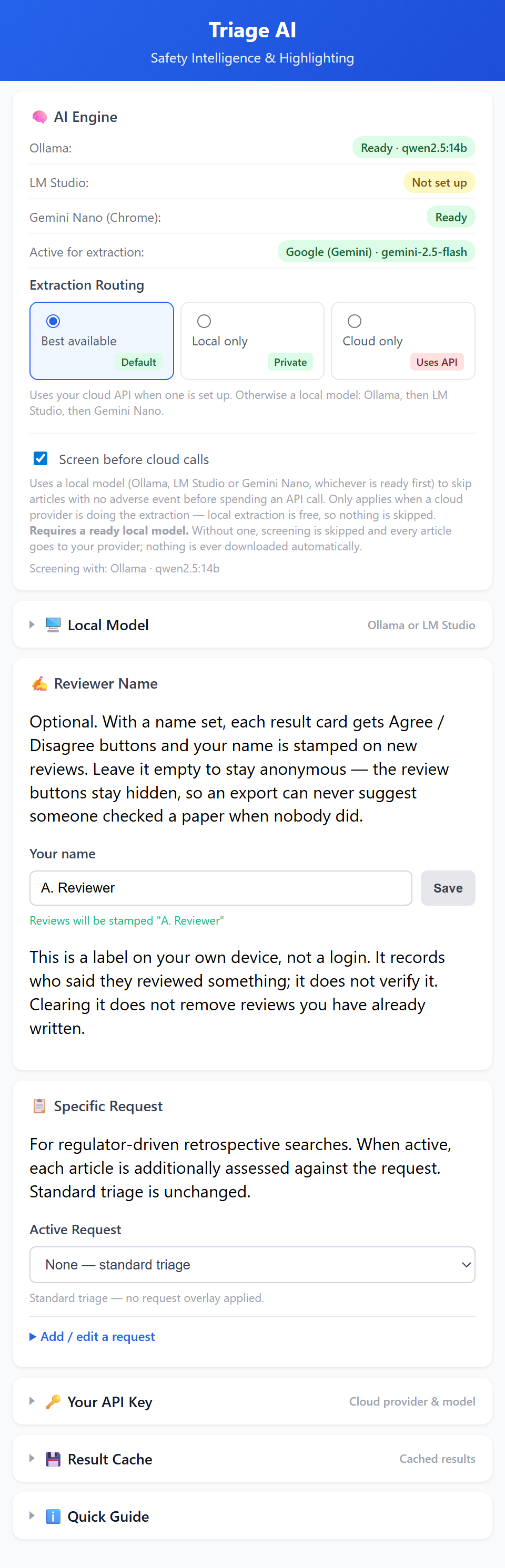
The whole Settings tab as it first opens. The collapsed cards expand when clicked.
Set up
Free AI options
You can run the extension without paying anything. The options below either cost nothing or have a free tier that covers light use. They are listed from most private to least.
Read this before choosing a free cloud tier
Free cloud tiers may use what you send them to train or improve their models. Google's terms say content sent on the Gemini API's free tier is used to improve Google's products, may be read by human reviewers, and should not include sensitive, confidential or personal information. The same terms allow only paid services when an app is made available to users in the EEA, Switzerland or the UK, so if you are there, check how that applies to you before using the free tier. On OpenRouter, some free models are served by providers that may train on your requests.
Published abstracts are public, but they can describe individual patients. If your organisation has rules about sending text to AI services, check them first. A local model (Ollama, LM Studio or Gemini Nano) sends nothing anywhere.
In Settings open Local Model and choose Ollama. No key is needed. Click Fetch, click Allow when Chrome asks (why), pick a model, then Test connection.
That's all. Ollama normally refuses browser extensions, but the extension handles this for Ollama on its usual address. Running it on a different port? See below.
In LM Studio's Developer tab, switch the server on (Status: Running) and click Load Model.
In Settings open Local Model and choose LM Studio. Click Fetch, click Allow when Chrome asks, pick the model you loaded, then Test connection. Models marked (not loaded) must be loaded in LM Studio first.
Adequate; larger local models and cloud models do better
Open Settings. If Gemini Nano (Chrome) says Not installed, click Enable on-device AI.
Wait for Ready. That's it.
Needs the hardware listed under requirements. Chrome controls it, and sometimes reports it unavailable without saying why; Ollama or LM Studio are the dependable local options.
Cloud, free tier
Google AI Studio (Gemini)
Cost
Free tier, no card needed to start
Limits
Set per project and shown in AI Studio; not guaranteed
Data
Free-tier content is used to improve Google's products. EEA, Swiss and UK users: read the terms first
Create a key in Google AI Studio.
In Settings, under Your API Key, choose Google (Gemini), paste the key and click Save. Click Allow when Chrome asks (why), then Fetch, pick a model, and Test connection.
Per organisation, shown in your Groq console; extra keys don't add more
Speed
Very fast responses
Create a key in the Groq console.
In Settings, under Your API Key, choose Groq, paste the key and click Save. Click Allow when Chrome asks (why), then Fetch, pick a model, and Test connection.
20 requests a minute; 50 a day, or 1,000 a day once you have bought $10 of credit
Data
Some free models may train on your requests; check your privacy settings
Create a key on OpenRouter. In its privacy settings, turn off providers that may train on your data.
In Settings, under Your API Key, choose OpenRouter, paste the key, Save, Fetch, and pick a model whose name ends in :free. Then Test connection. OpenRouter is approved when you install the extension, so Chrome doesn't ask.
Ollama refuses requests from browser extensions by default, with an error 403. The extension gets past this on its own for Ollama's usual address (port 11434 on your computer), and the change applies only to the extension's own requests: websites still can't reach your Ollama. If you run Ollama on a different address or port, or still see 403, allow Chrome extensions by setting OLLAMA_ORIGINS and restarting Ollama. This is the value from Ollama's FAQ:
chrome-extension://*
Windows: quit Ollama from the taskbar. Open Settings, search for environment variables, choose Edit environment variables for your account, add OLLAMA_ORIGINS with the value above, click OK, then start Ollama again from the Start menu.
macOS: run launchctl setenv OLLAMA_ORIGINS "chrome-extension://*" in Terminal, then restart the Ollama app.
Linux (systemd): add Environment="OLLAMA_ORIGINS=chrome-extension://*" to the Ollama service with systemctl edit ollama.service, then restart it.
Paid providers
The extension also works with OpenAI, Anthropic (Claude), DeepSeek, Mistral, Together AI, xAI (Grok), and any other service that offers an OpenAI-compatible API. These are paid or need billing set up. Mistral's free API access changed in October 2026; check its current terms before relying on it.
Free-tier terms change oftenDetails in this section were checked in November 2026. Each provider's own limits page is the reliable source; the links above go straight to it.
Settings tab
AI Engine
Ollama and LM Studio show whether each program is ready to use, with the model chosen under Local Model. Hover over a badge for the reason when it isn't.
Gemini Nano (Chrome) shows whether Chrome's built-in AI is Ready, Not installed, Downloading or Unavailable. When it isn't ready, the line under Active for extraction says what to do.
Active for extraction shows which engine will actually analyse articles right now. Check this if a run behaves unexpectedly.
Enable on-device AI appears only when Chrome can install Gemini Nano but hasn't yet. The extension never downloads it without this click.
Extraction Routing
The choices are about where abstracts go, not which company makes the model. Ollama, LM Studio and Gemini Nano all run on your computer, so they count as local. Full-text extraction follows the same choice: with Best available and a key saved, the whole article goes to your provider.
Choice
What happens
Best available (default)
Uses your cloud provider when a key is set up and working. Otherwise a local model: Ollama, then LM Studio, then Gemini Nano, whichever is ready first.
Local only
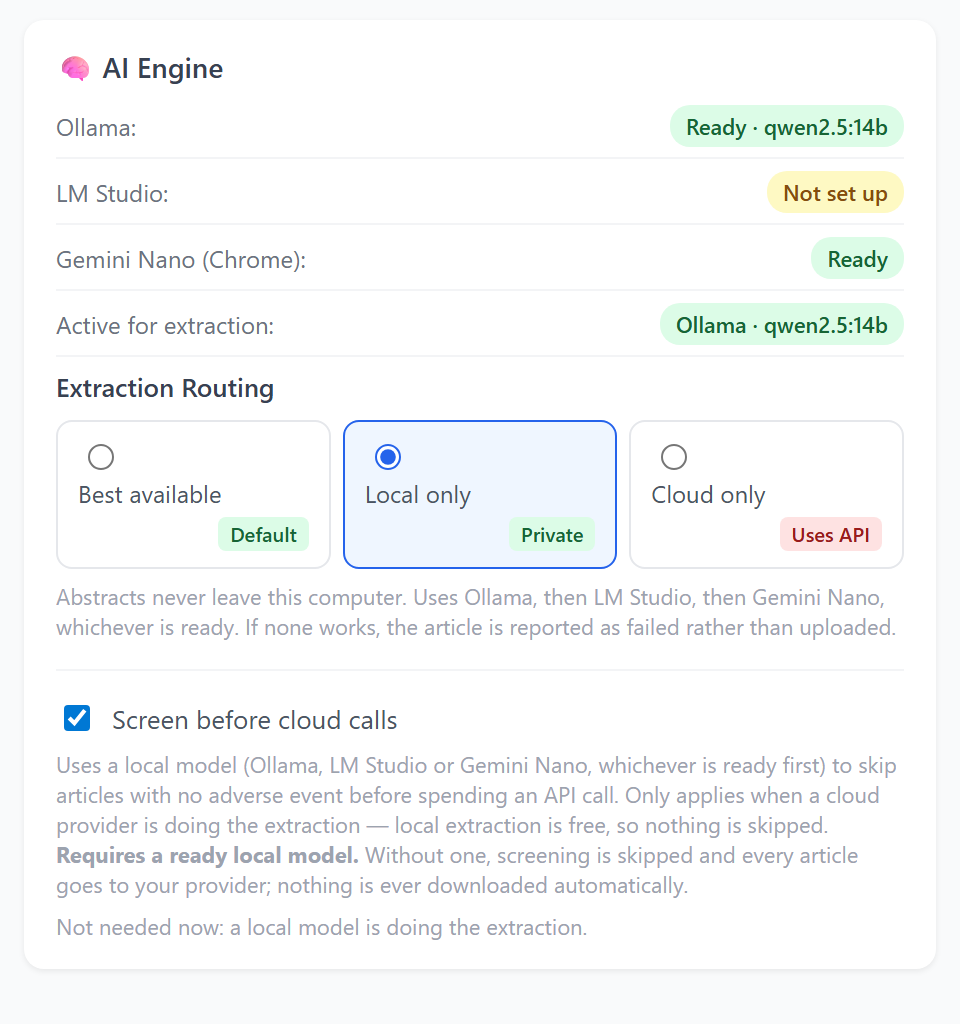
Every abstract stays on your computer. Uses Ollama, then LM Studio, then Gemini Nano; if one fails on an article, the next ready one tries. If none can, the article is reported as failed rather than sent anywhere. This is a guarantee, not a preference.
Cloud only
Always uses your provider for extraction. A local model may still screen articles first (below).
Local only, with Ollama doing the extraction.
Screen before cloud calls
On by default. When a cloud provider is doing the extraction, a local model first reads each abstract and decides whether it reports an adverse event at all. It uses the first one ready: Ollama, LM Studio, then Gemini Nano. The line under the checkbox names it. Articles it rules out are marked skipped and never sent to your provider, which saves API calls on large searches.
It only runs ahead of a cloud call. Local extraction is free, so nothing is screened out when a local model does the work.
It needs a ready local model. Without one, screening is skipped and every article goes to your provider.
It never removes an article because of an error. If the screen fails or times out, the article goes to extraction.
If the text contains explicit causality language, the article is analysed even when the screen says skip.
Skipped articles stay on the page with their own card and review buttons, and appear in exports.
Untick it to send every article to your provider.
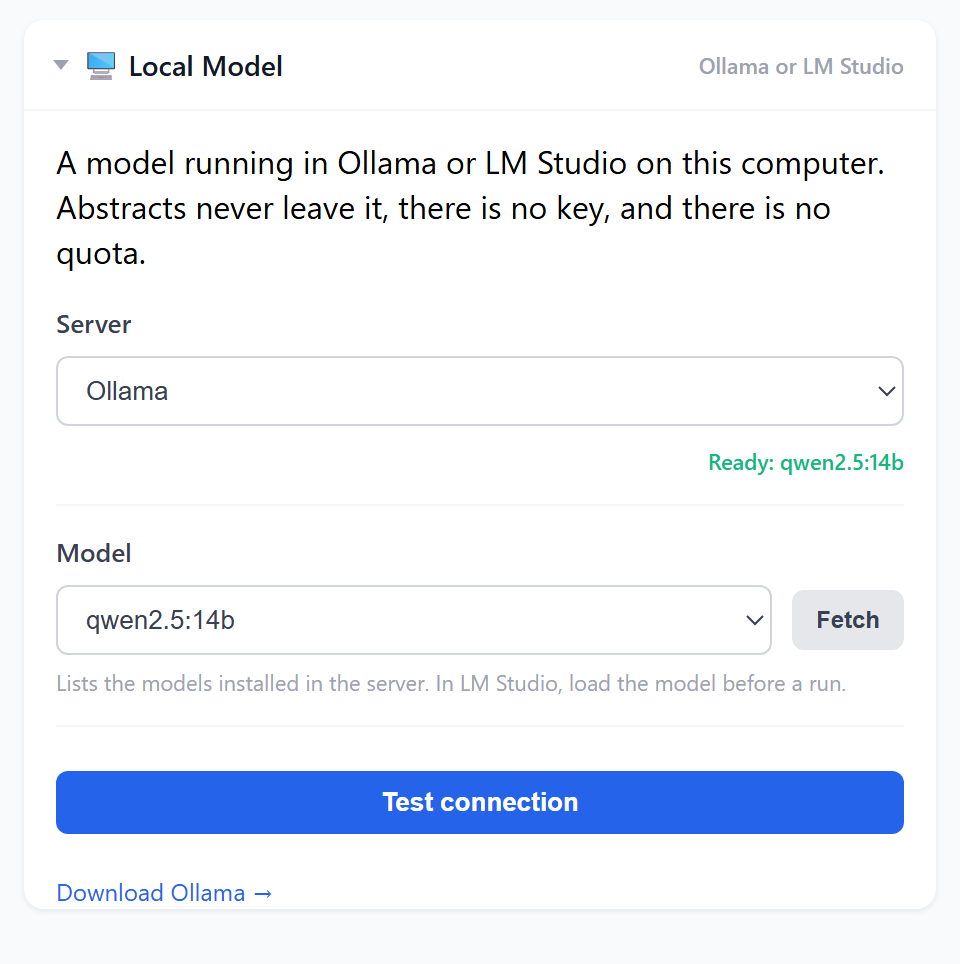
Local Model
Server: choose Ollama or LM Studio. The line under it says whether that program is running and ready.
Model: click Fetch to list the models installed in it. The first time, Chrome asks you to allow the extension to contact that program on your computer: click Allow. Then pick a model. It is saved straight away.
Click Test connection. It runs one real triage on a sample abstract.
You can set up both. Each keeps its own model, and when both are ready Ollama is used first.
No key and no quota. Abstracts go to the program on your computer and nowhere else.
LM Studio lists every model you've downloaded, loaded or not. The extension uses a model only once LM Studio has loaded it; models that aren't loaded are marked (not loaded), and the status says Model not loaded. Load it in LM Studio's Developer tab.
If the program isn't running when a run starts, the extension moves on to the next ready engine, or tells you none is ready. It never waits indefinitely: a local request that gets no answer within two minutes fails with a message saying to check the model is loaded.
A larger model gives better results but needs more memory. Use one your computer runs comfortably; the extension pauses between articles so the computer stays usable.
The link at the bottom opens the chosen program's download page.
If you used Ollama with an earlier version, where it was listed under Your API Key, the extension has moved it here for you, with the same model. If you had chosen Cloud only to use it, that is now Local only.
Reviewer Name
Type your name and click Save. From then on every card shows Agree and Disagree, your name is stamped on each review you write, and exports carry it.
It is a label stored on this computer, not a login. It records who said they reviewed something; nothing verifies it, and it is not an electronic signature. Clearing the name hides the review buttons again but does not delete reviews already written.
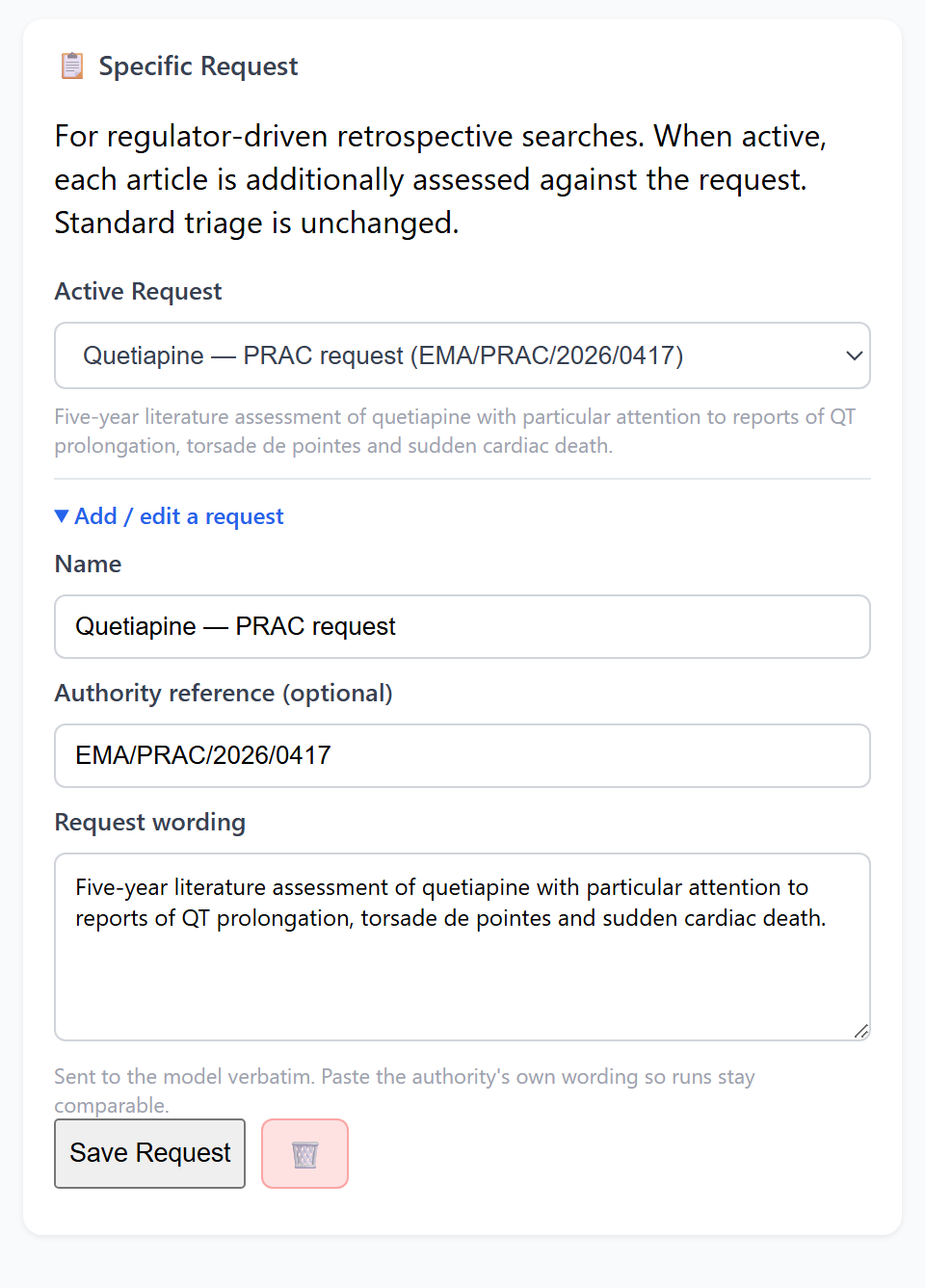
Specific Request
Regulators ask targeted questions, such as a five-year assessment of one drug with particular attention to one kind of event. A Specific Request adds that question to the standard triage.
Open Add / edit a request. Enter a name, the authority's reference if there is one, and the request wording pasted exactly. Click Save Request.
Choose it under Active Request.
Run a triage or sweep as usual. Set it back to None when you are done.
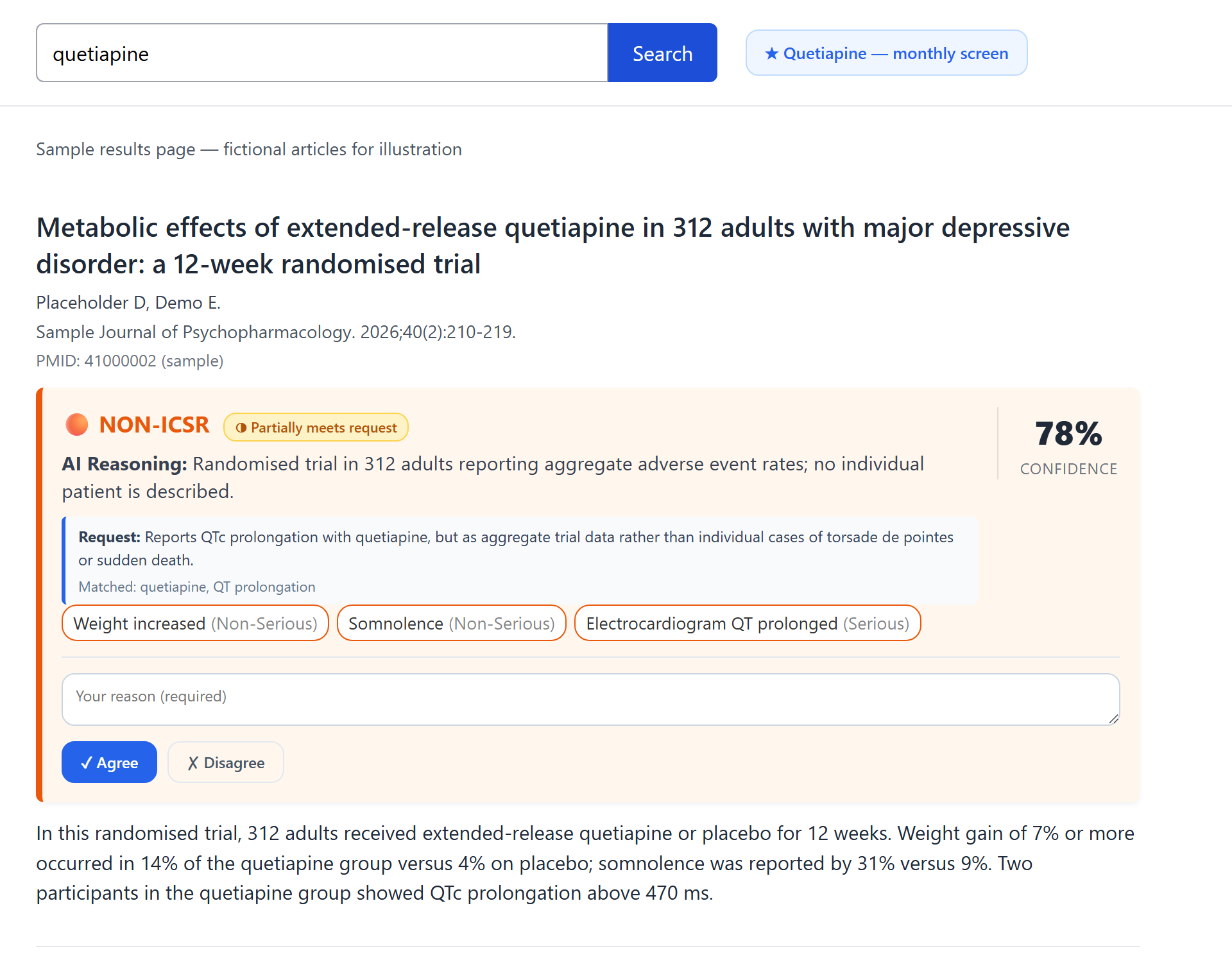
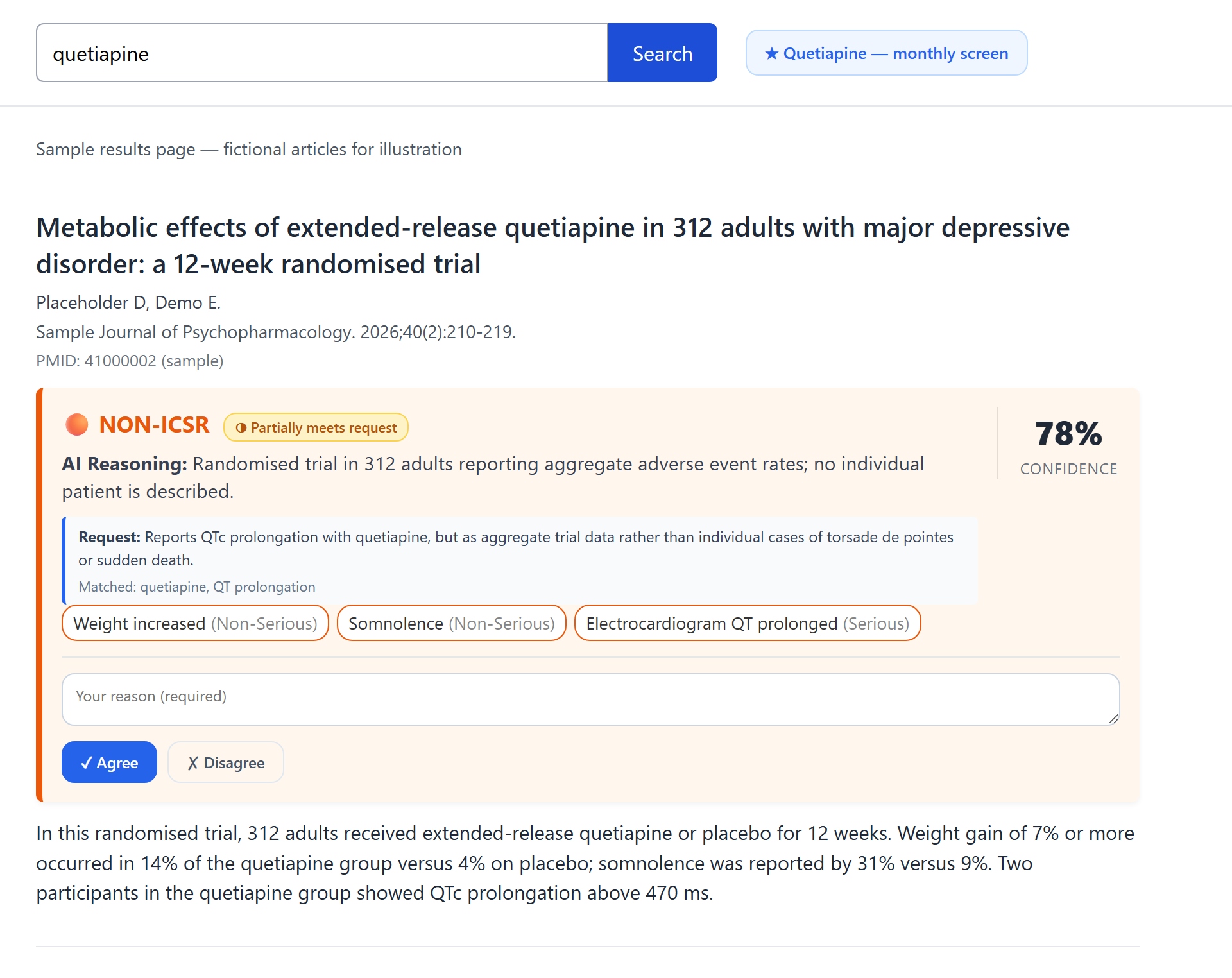
Each card then gets a second judgement: 🎯 Meets request, ◑ Partially meets request or ○ Does not meet request, with a one-line reason and the criteria it matched.
A request never narrows the triage
A request about addiction does not stop the extension extracting a case of liver injury. Every adverse event is still extracted and nothing is filtered out for being off-topic. The request is a second question asked of every article.
Requests are saved because the same wording gives comparable runs. Changing the wording, or switching request, makes articles be analysed afresh rather than reusing earlier results.
Your API Key
Provider: pick one. The note under it explains any limits. For a service not listed, choose Custom (OpenAI-compatible) and enter its Base URL, the part before /chat/completions.
API Key: paste it and click Save. Chrome asks you to allow the extension to contact that provider; accept. If you see Grant access to this provider, the permission wasn't given yet; click it.
Model: click Fetch to load the models your key can use, then pick one.
Click Test connection. It sends one real test request to check the key, model and connection together. Do this before any large run.
Keys are stored on this computer only, never synced, and sent only to their own provider.
Each provider keeps its own key, so switching provider doesn't lose the others. The bin button deletes the selected provider's key.
The link at the bottom of the panel opens the chosen provider's page for getting a key.
Ollama and LM Studio are not here: they run on your computer and need no key. Set them up under Local Model.
For security, a key is never sent over plain http://, except to a server on your own computer.
The model list comes live from your provider, so a retired model never breaks a run. If Fetch returns no models, that provider can't be used with the extension yet; choose another.
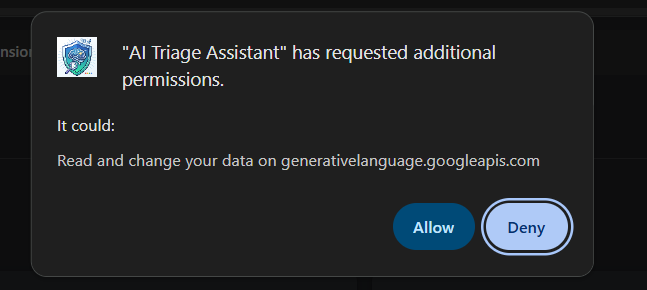
“Requested additional permissions”: click Allow
The first time you save a provider, or click Fetch for one, Chrome shows this:
Chrome's own dialog when Google (Gemini) is saved. The address changes with the provider.
It is Chrome asking whether the extension may contact that provider's address, here Google's AI service. The extension needs this to send an abstract to the provider and get the answer back. Click Allow.
Why the wording sounds broad. “Read and change your data on …” is Chrome's standard text for any access to a web address. It covers that one address only, the provider's API, not the websites you browse.
One provider at a time. The extension asks for the provider you chose and nothing else. Choosing a different provider later brings a new prompt for that one.
If the panel closes while Chrome's dialog is open, nothing is lost: your key was saved before the dialog appeared. Open Settings again and carry on with Fetch.
If you clicked Deny, the key stays saved but can't be used. Open Settings and click Grant access to this provider to see the dialog again.
No prompt for OpenRouter or Gemini Nano. OpenRouter is approved when you install the extension, and Gemini Nano runs inside Chrome. Ollama and LM Studio do bring the prompt, for their address on your own computer (localhost); it lets the extension reach that program, nothing on the internet.
You can review the extension's access at any time on its Details page in chrome://extensions.
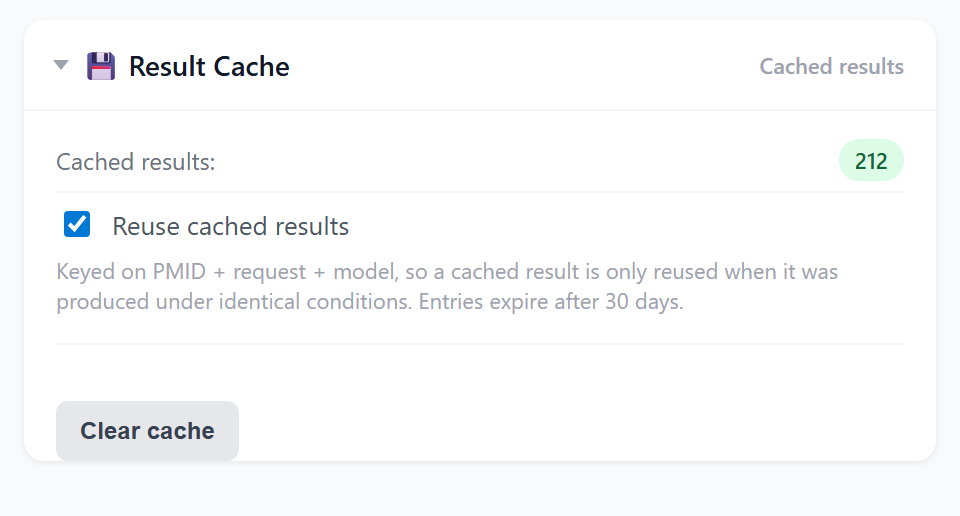
Result Cache
Every successful analysis is kept on this computer. When the same article comes up again with the same request, provider and model, the stored result is reused and the card is marked 💾 cached: no API call, no wait.
Changing request, provider or model means a fresh analysis.
Only successes are kept, so a temporary failure is retried next time.
Entries expire after 30 days.
Reuse cached results turns reuse off without deleting anything. Clear cache deletes the stored analyses, but never your reviews, saved searches or extracted cases.
On PubMed
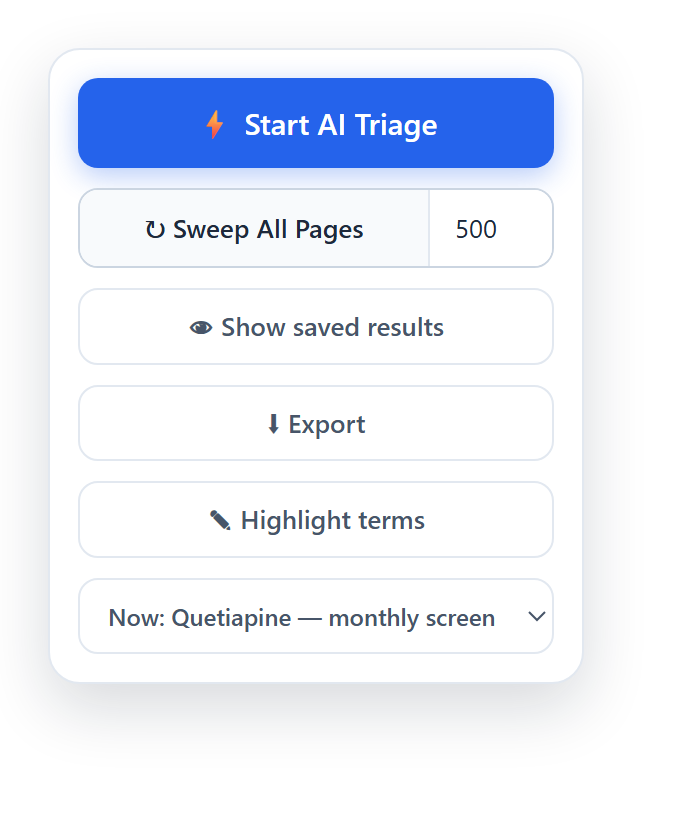
The panel
On a PubMed results page with an active search, a panel appears at the bottom-right.
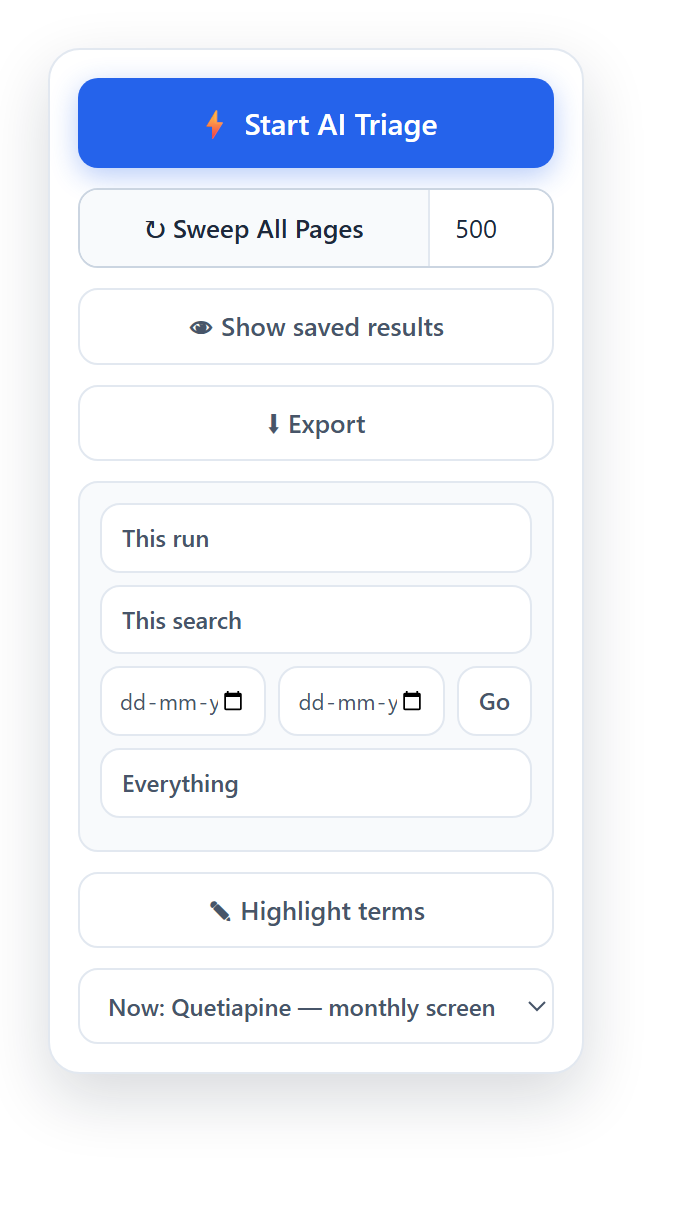
⚡ Start AI Triage
Analyses every article on the page and adds a card to each. It switches the page to abstract view first. When more results load it reads Analyze N New Articles, and when all are done, Triage Complete.
↻ Sweep All Pages
Runs the whole result set, up to the number beside it. See Sweeping.
👁 Show saved results
Redraws cards for articles already analysed, from your computer, with no API calls.
During a run the page scrolls to each article as its analysis starts, so you can read each card as it arrives. Scroll or start typing a comment and it stops following; click ▶ Resume following the run at the top of the page to pick it up again.
Reading a card
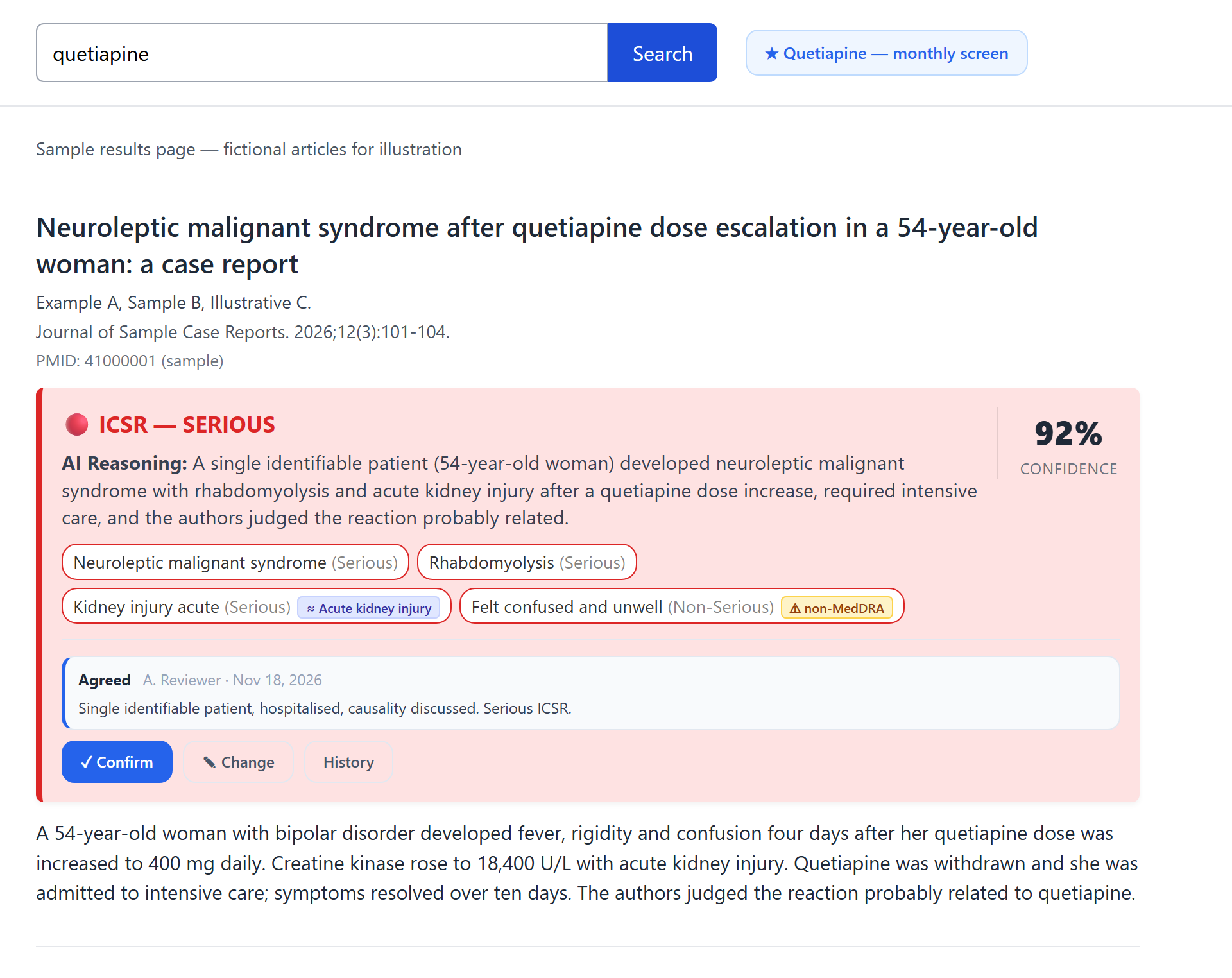
The coloured title says what the article is:
ICSR — SERIOUSAn identifiable patient with at least one serious event.
NON-ICSREvents in a group of patients, such as a trial or cohort.
INVALIDNo identifiable patient or no adverse event.
A serious individual case, already reviewed. Sample article.
AI Reasoning is the model's explanation. Read it before agreeing; it is what you are agreeing with.
Event tags name each adverse event as Serious or Non-Serious. Serious means death, life-threatening, hospitalisation, disability, congenital anomaly or otherwise medically significant. An event the model doesn't clearly call non-serious is shown as serious.
⚠ non-MedDRA means the term matches no MedDRA lowest-level term as written. It is flagged, never rewritten; you decide the coding.
≈ term means a near match, for example a different word order. MedDRA's own spelling is shown beside the model's.
Confidence is the model's own 0 to 100 rating of how clear the safety information was. Use it to decide where to look harder, not as a probability.
A group study, with a Specific Request active.
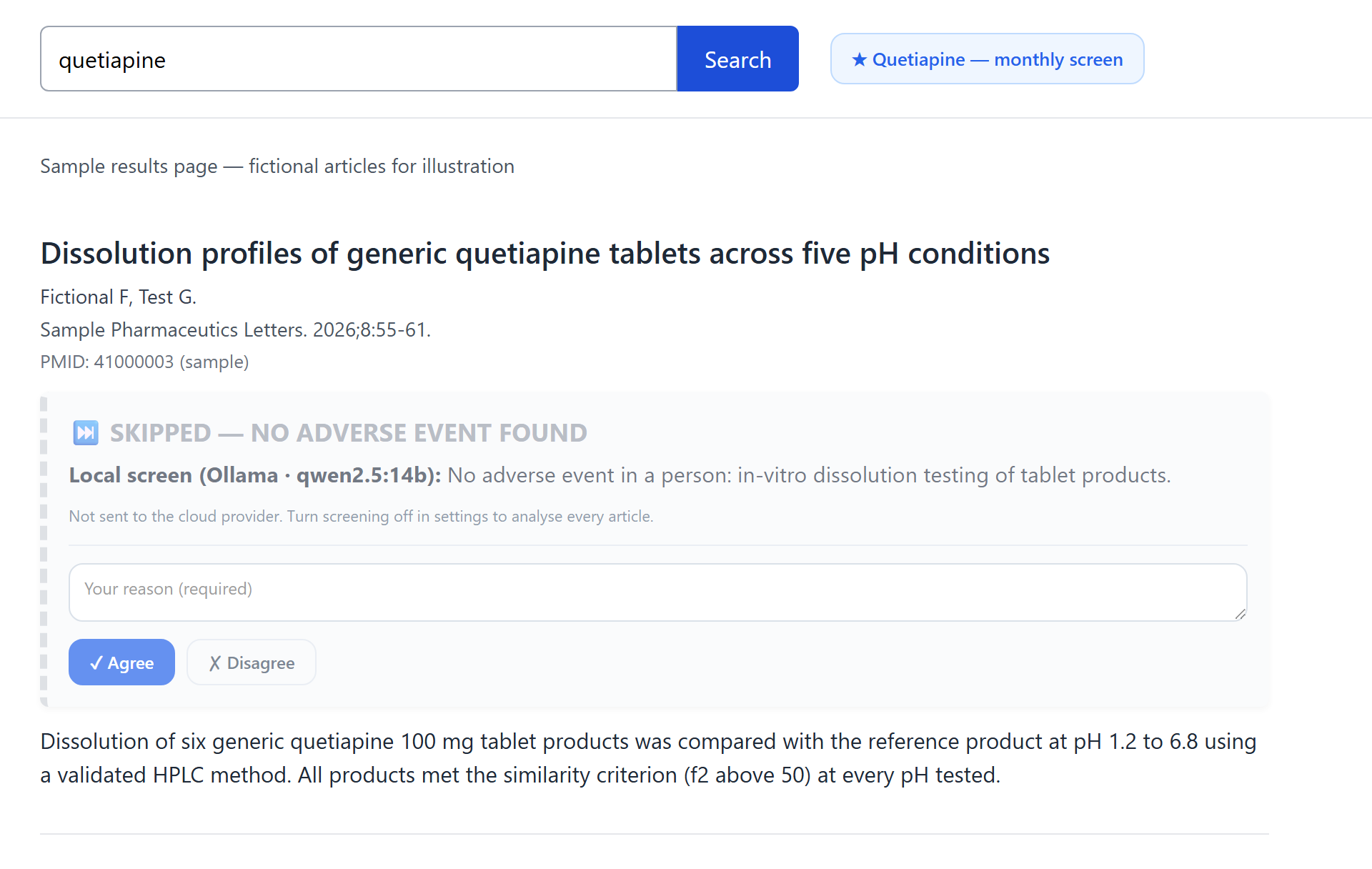
Skipped by the local screen, which the card names. Still reviewable.
Skipped cards appear when screening ruled an article out before a cloud call. They name the local model that made the call, show its reason, and still have review buttons: if you think the screen was wrong, say so here.
Error cards read No AI Provider Available, Daily Quota Exhausted or Analysis Failed with the provider's message. See Troubleshooting.
Reviewing
The strip at the bottom of every card records the human decision.
What you see
Meaning
Set your name in Settings…
No reviewer name is set, so nothing can be recorded. On purpose: an anonymous export must never look reviewed.
Comment box, ✓ Agree, ✗ Disagree
Not judged yet. Type your reason first; it is required. Disagree when the classification, an event, the seriousness, or a skip is wrong.
✓ Confirm, ✎ Change, History
Already judged. Confirm keeps the verdict with a fresh date, Change opens the comment to edit, and History lists every earlier judgement.
Nothing is overwritten. Changing your mind adds a new entry and marks the old one replaced; both are kept and exported.
Reviews follow the article. When an article you reviewed turns up in another search, the card shows your earlier judgement, and the export marks it carried-forward until someone clicks Confirm in this search.
Stale reviews are flagged. If the article was analysed again since you reviewed it and the result differs, the card shows ⚠ Written against an earlier analysis. Re-read, then Confirm or Change.
Sweeping every page
Run the PubMed search with every filter you need: dates, article type, language. The sweep keeps them.
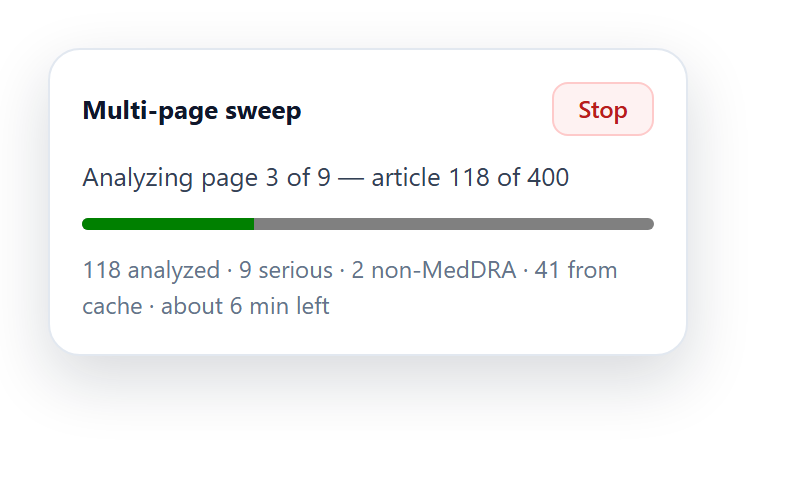
Set the maximum number of articles beside ↻ Sweep All Pages. The default is 500 and the limit 5,000.
Click it. A summary shows how many results there are, how many will be analysed, which engine will do it, and a rough time. Confirm to start.
When it finishes, click 👁 Show saved results on any page of the search to read and review the cards.
Keep the tab open. Pages are fetched in the background, one per second, and no cards are drawn until you use Show saved results.
Stop halts after the current article. Everything analysed so far is kept.
Progress is saved as it goes. If the tab closes or Chrome restarts, reopen the same search and accept Resume the interrupted sweep?.
An article appearing on two pages is analysed once.
If PubMed shows its "are you a robot" page instead of results, the sweep stops and says so rather than finishing early. Reload PubMed and run it again; it resumes.
Saved searches
Click ☆ Save search next to PubMed's search box and give it a name. The button then shows ★ and the name; click it again to rename. Reopen it any time from the list at the bottom of the panel.
A saved search is the query and its filters. Page number, page size and sort order don't count, so page 3 of a saved search is still that search. Reviews made on it are filed under it, which is what Export → This search collects.
Exporting
Option
Contains
This run
The articles from the latest run in this tab.
This search
Everything recorded under the saved search you are on, with every review. Save the search first.
Date range → Go
Every article analysed and every review written between the two dates, including the whole last day.
Everything
All records on this computer. Asks first, because the files can be large.
Each option saves a spreadsheet file, pv-<name>-<date>.csv, which opens directly in Excel. All options except This run also save a review log, …-reviews.json, with every review ever written, including ones later changed.
review_status keeps the file honest: reviewed means someone judged the article in this search; carried-forward means the judgement came from another search and nobody confirmed it here; blank means no one has judged it. Treat carried-forward rows as unreviewed for this search.
The file starts with five lines describing the export, then a blank line, then the column headings.
Highlighting terms
Click ✎ Highlight terms to colour-code the page:
Drug namesAdverse eventsCausality phrasesPatient details
The button then reads ✕ Remove highlights. Highlighting lasts until you leave the page, because matching about 150,000 terms takes a moment and would slow every page if it ran automatically.
Full text
Reading an article
Triage reads abstracts. When a paper needs a closer look, the side panel's Full text tab reads the whole article. There are three ways in:
An article open in a tab: a publisher's page, PMC, a preprint server, or a PDF open in Chrome. Click the extension's icon, or right-click the page and choose Read full text with Triage AI. The panel opens and reads it straight away. If the panel is already open and you move to another article, click Read this page.
A PubMed record with a free copy on PMC. The panel offers Open the free full text. The first time, Chrome asks to let the extension read PMC; click Allow and the copy is opened and read. If you decline, it still opens; click the icon there.
A PDF file. Drop it on the panel, or click Choose PDF. Use this for a PDF saved on your computer, and for sites that send a web page instead of the PDF.
The extension reads a page only when you click its icon on it, and only what you can already see: nothing is fetched past a paywall or sign-in. If only about an abstract's worth of text is found, the panel says so.
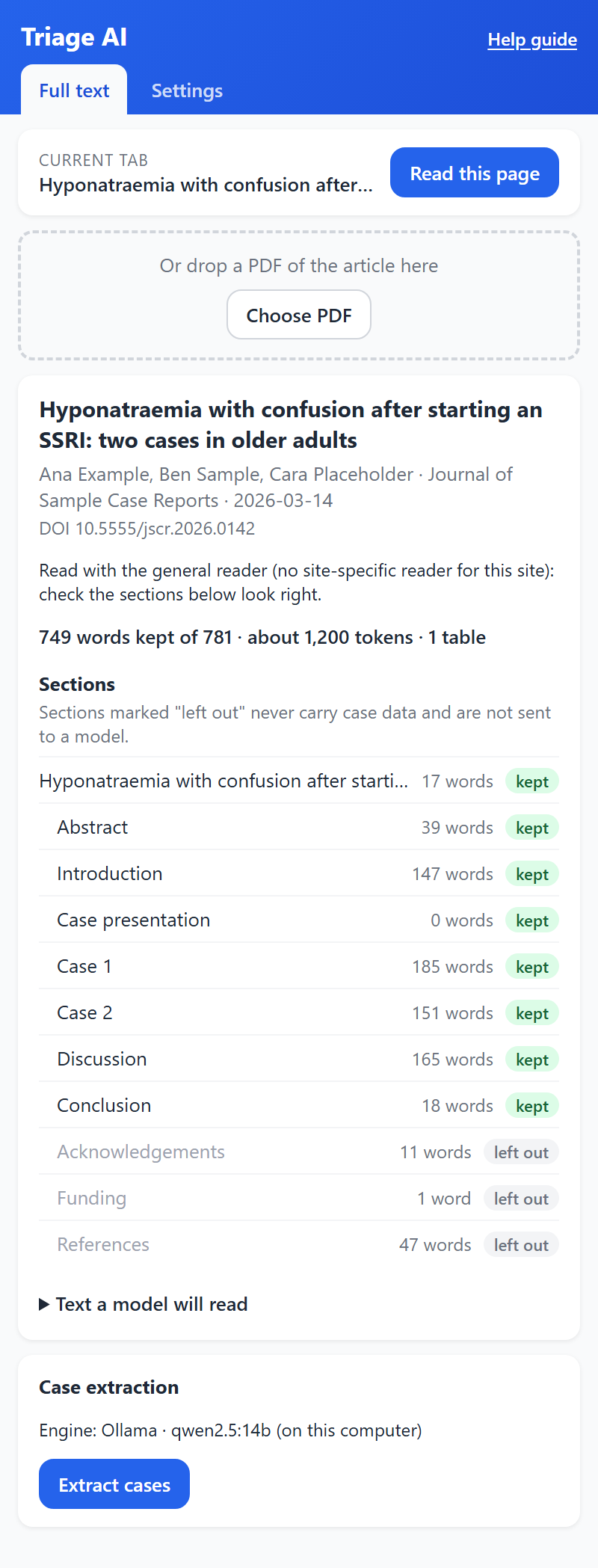
After reading, the panel shows the article's details and which reader it used, then its Sections. References, acknowledgements, funding and author information are marked left out and are never sent to a model. Text a model will read shows exactly what will be sent. Major publishers and PMC have their own readers; on other sites, and for PDFs, check that the sections look right.
The Full text tab after reading a fictional sample article. The back matter is left out.
Extracting cases
The Case extraction card names the engine that will be used, chosen by Extraction Routing as for triage. When it is a cloud provider, a notice says the article text will be sent to it. A full article is copyrighted and much longer than an abstract, so it also uses more of your quota; choose Local only to keep it on your computer.
Click Extract cases. The model reads the article twice: first to find the patients the authors report first-hand, leaving out patients from cited publications, review tables and the reference list; then once for each patient, using only that patient's part of the article. Stop ends the run; a stopped run saves nothing.
No case in the articleFor a trial, cohort, review, or animal or laboratory study, the panel says No identifiable patient data. No extraction done., with the model's reason, and stops.
Engine
What to know for full text
Ollama
The context window is set for each request automatically, up to 32,768 tokens. A case report took about 1 to 2 minutes with a 14B model in testing.
LM Studio
Uses the context length the model was loaded with. If it is too small, the panel says so: eject the model in LM Studio and load it again with Context Length 16,384 or more.
Gemini Nano
Used only if already installed; extraction never starts the download. It reads about 3,000 words at a time, so long articles are read in parts.
Cloud provider
Any provider set up under Your API Key. Usually the fastest.
A 14B-class local model or a cloud provider gives the best results. The cases are saved on your computer as soon as the run finishes, under the article's DOI (or its PMID, PMCID, address or file name), so the same article opened from PubMed, PMC or the publisher finds them again. Extract again replaces them, and asks first if you have edited or reviewed them.
Reviewing cases
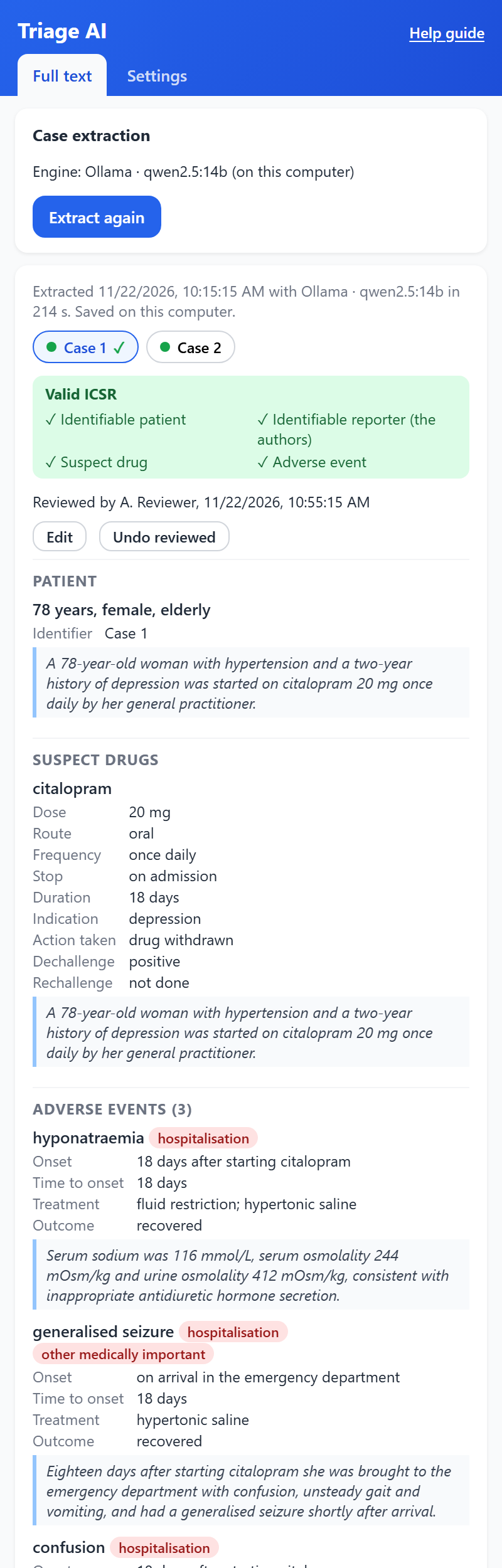
Each case has a tab, named as the authors name the patient. Inside it:
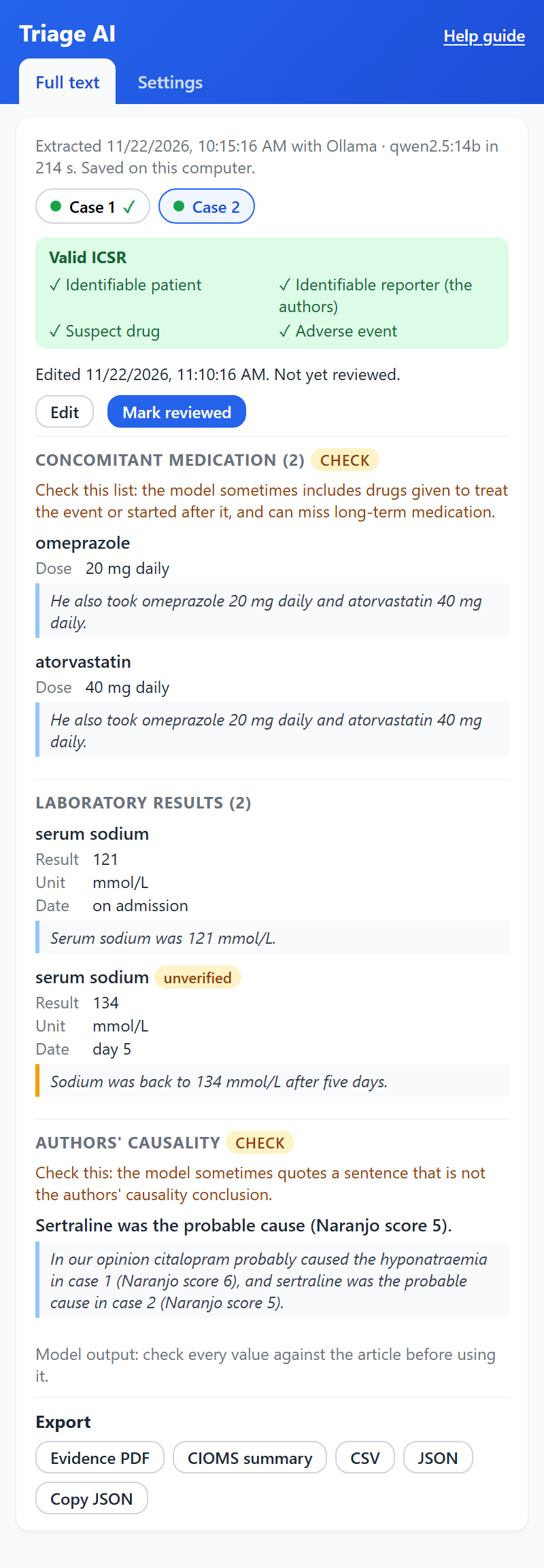
A validity checklist: identifiable patient, identifiable reporter (the authors), suspect drug and adverse event.
The patient, suspect drugs, adverse events with outcome and seriousness, medical history, concomitant medication, laboratory results, the authors' causality statement, and a short narrative marked as written by the model.
The quote under each item. Click it to highlight that sentence on the article page. For a PDF from the web, the PDF opens at the quote's page. A quote that is not in the article text is marked unverified: check that item.
check tags on concomitant medication and causality, where the model is least reliable: it can include drugs given to treat the event, miss long-term medication, or quote the wrong sentence as the authors' conclusion.
A reviewed case. Every item shows the sentence it came from.
Clicking a quote in the panel highlights that sentence on the article page. The page itself is not changed.
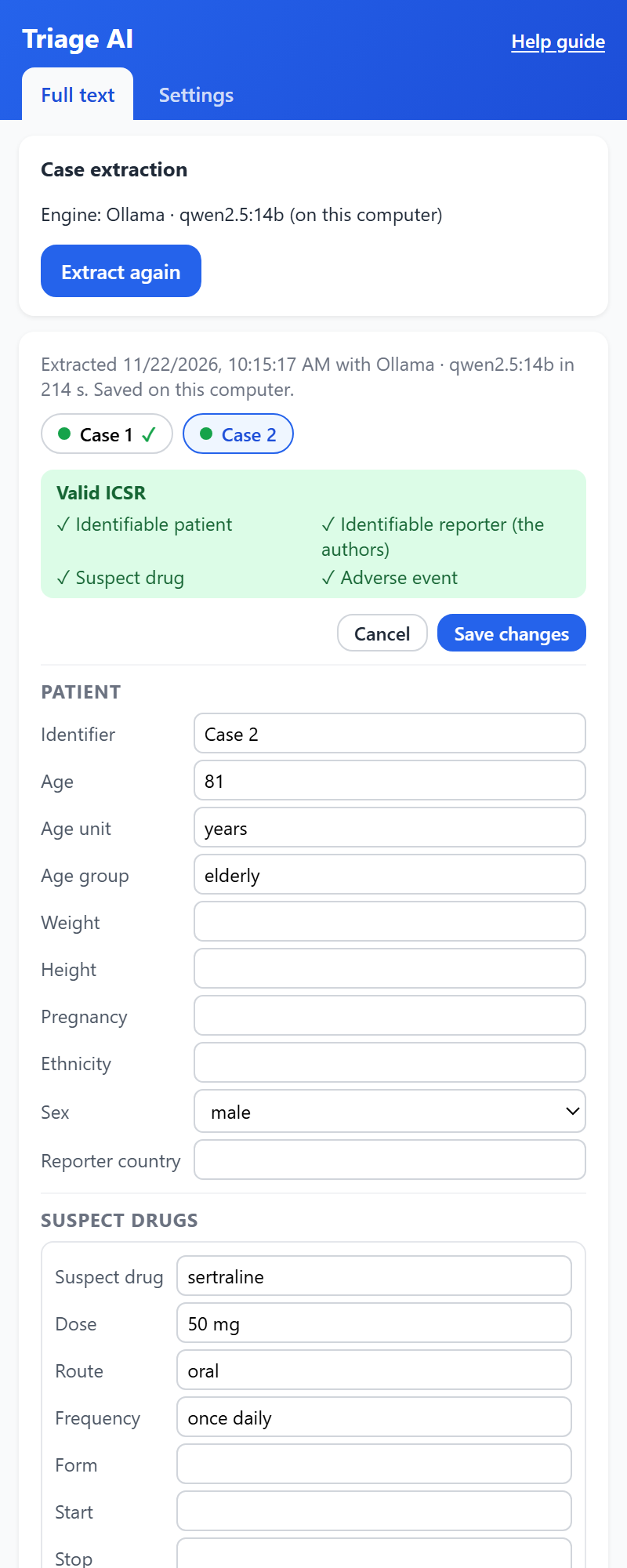
Edit opens every field for editing, with lists for the coded fields; + Add and Remove add and remove items. Save changes keeps them, and changed items are tagged edited or added. The model's original extraction is always kept beside your edits.
Mark reviewed records your reviewer name and the time. Editing a reviewed case removes the mark, because the case you reviewed has changed; review it again.
A case to check: the check notes, and a result whose quote is unverified.
Editing a case. Coded fields such as sex are chosen from lists.
Exporting cases
The Export row under the cases. Exports use the saved cases, so save or cancel an edit first. Cases not yet marked reviewed are labelled DRAFT in the PDFs.
Button
What you get
Evidence PDF
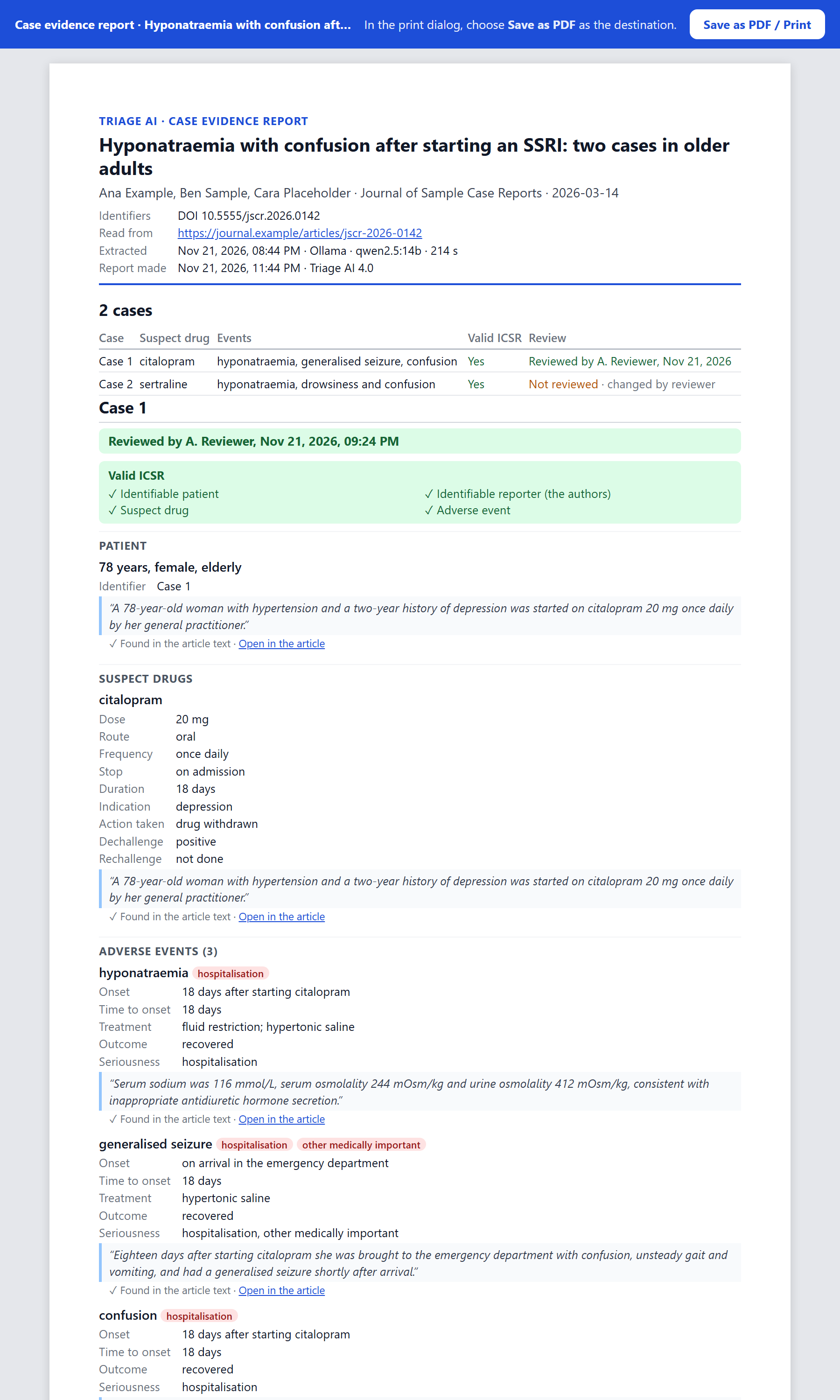
Everything the panel shows, for future reference: the article and extraction details, a summary of the cases, then each case on its own pages with its review mark, checklist, every item with its quote and whether it was found, and a table of your changes beside the model's original values. For a web article, each quote links to that sentence in the article.
CIOMS summary
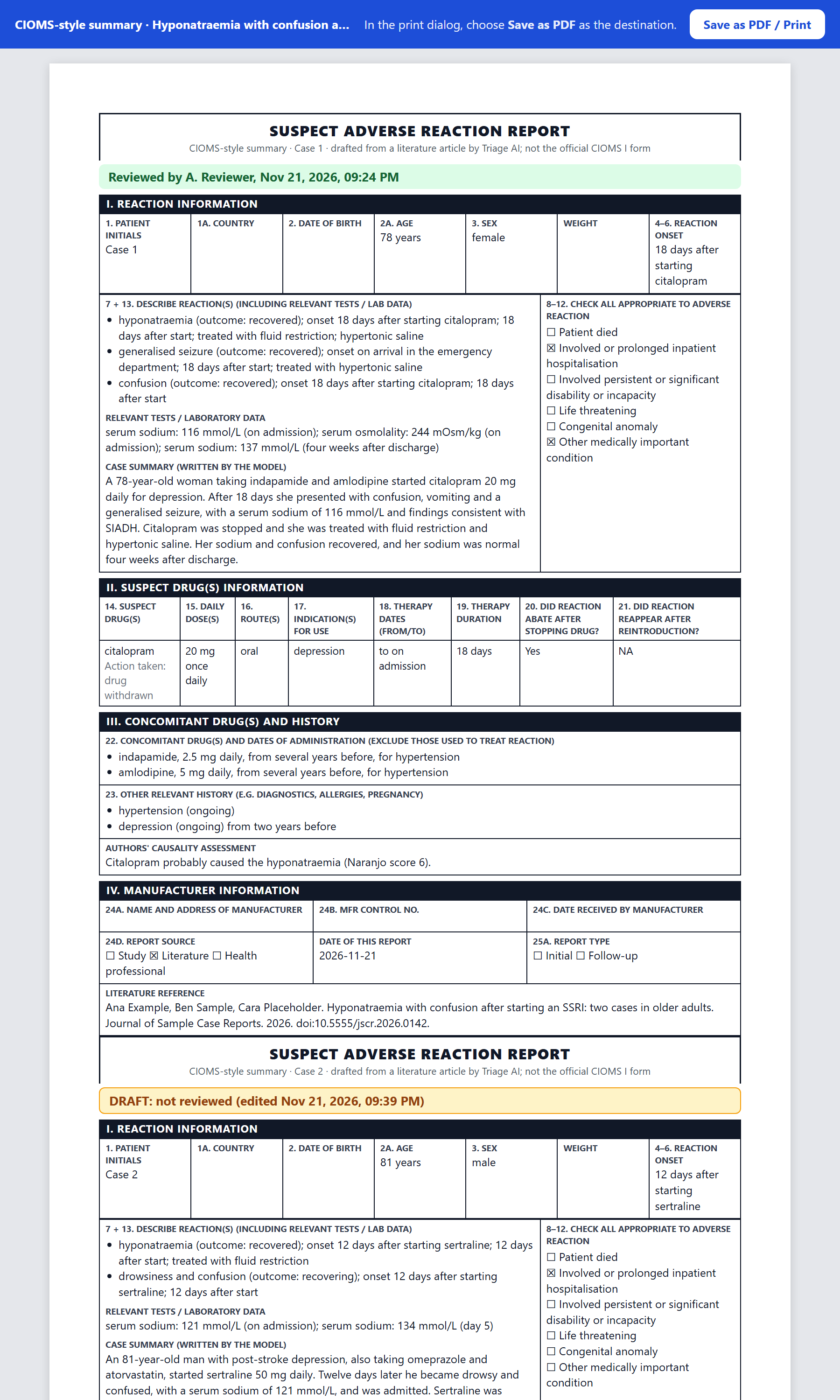
Each case on the boxes of the CIOMS I form, one page per case, with the seriousness boxes ticked and the report source marked Literature. It follows the form's layout but is not the official form, and says so.
CSV
One row per case, suspect drug and event. An article with no case still gets a row, so a screening log stays complete. Opens directly in Excel.
JSON
The whole record, including the model's original extraction and your changes to each case. Copy JSON copies it instead.
The evidence report, before saving it as PDF.
The CIOMS-style summary: one page per case, not the official form.
Saving the PDFs: the two PDF buttons open the report in a new tab with Chrome's print dialog. Choose Save as PDF as the destination and click Save; the file name is filled in. Printing through Chrome keeps symbols such as µ and ≥ and keeps the text searchable.
Reference
Privacy
Kept on your computer only
Your settings and reviewer name; your API keys, one per provider; request profiles; saved searches; analysis results (for 30 days); the record of every article analysed; every review; and the cases you extract from full text, with your edits and review marks (not the article text). None of it is synced or sent to the developer.
Sent to an AI provider, only when one is doing the extraction
For triage, the article's title and abstract, plus your request wording if one is active. For full-text extraction, the article text the panel shows under Text a model will read, after a notice in the panel. Always with your key, and only to the provider you chose. Your name and reviews are never sent anywhere.
Read only when you click
Outside PubMed and the other supported sites, the extension reads a page only when you click its icon, or its right-click menu item, on that page. It keeps no browsing history.
Sent nowhere
Anything, in Local only mode. The screen before cloud calls also runs on your computer: Ollama and LM Studio are reached on your own machine, and Gemini Nano runs inside Chrome.
There are no analytics, no tracking and no account. Uninstalling the extension deletes everything above, so export first if you need the record.
Troubleshooting
What you see
What to do
Runs are very slow and all of Chrome stutters while they run
Another program on your computer has probably switched on Chrome's accessibility mode. Open chrome://accessibility. If the mode boxes at the top are ticked and greyed out, tick Suppress automatic accessibility enablement… on the right. It lasts until Chrome restarts. In one test a 50-article run went from over 3 minutes to about 10 seconds. Don't leave it ticked if you use a screen reader or voice control.
What switches it on: any program that reads other apps' content through Windows accessibility: screen readers, voice control, desktop automation tools and AI agents that operate the desktop, and some writing, translation or password-manager apps. Game overlays and screen recorders usually don't.
Finding the program: quit Chrome fully, reopen it, and check that the boxes are clear. Then start your usual programs one at a time, reloading chrome://accessibility after each; the one that ticks the boxes is the cause.
To make the fix permanent, start Chrome with --disable-platform-accessibility-integration (add it to the Chrome shortcut's Target field, after the closing quote). This has the same effect as the checkbox, every time, and also stops screen readers from reading Chrome.
No panel on PubMed
It appears only on a results page with a search, not the home page or a single article. Reload the tab.
Nothing happens, or errors mention settings you already changed
The page is running an older copy of the extension after an update. Hard-refresh with Ctrl+Shift+R (Cmd+Shift+R on a Mac).
I clicked Deny on Chrome's permission dialog
Open Settings and click Grant access to this provider, then Allow. Your key is still saved. What the dialog means.
The panel closed when Chrome asked for permission
Your key was saved first. Open Settings again and continue with Fetch.
No AI Provider Available
No local model is ready and no working key is set. The message says what is missing; the usual fix is to start Ollama or LM Studio, or add a key.
Daily Quota Exhausted
Your provider's daily limit. Wait for it to reset, add credit, or switch provider. A stopped sweep resumes later.
Model unavailable
The provider retired the model. Click Fetch and pick another.
Fetch returns no models
Check the key and, for Custom, the Base URL. If it still returns nothing, that provider's model list isn't reachable, so choose another provider.
Ollama or LM Studio says Not running
Start the program. Ollama runs in the background once started. In LM Studio, open the Developer tab and switch the server on. Then reopen the Settings tab.
Ollama or LM Studio says Needs access
Open Local Model, click Allow access to this server, then Allow.
LM Studio says Model not loaded, or a run reports it did not answer
Load the model in LM Studio's Developer tab (Load Model). If it unloads itself or fails to load, it may be too large for your computer's memory: load a smaller one and pick it under Local Model.
Ollama: error 403, or Test connection fails
Make sure Ollama is running and you allowed access when you clicked Fetch. If Ollama runs on a different port, set OLLAMA_ORIGINS and restart it.
API Key Missing although Test connection passes
Two copies of the extension are installed. Open chrome://extensions and remove the extra one.
Gemini Nano stays Unavailable
Chrome doesn't tell the extension why, so check Chrome's own page: open chrome://on-device-internals → Model Status.
If it says Ready, Chrome's installed model is too old for extensions to use. Open chrome://components and click Check for update on Optimization Guide On Device Model. If that doesn't help, click Uninstall on the Model Status page, restart Chrome, and keep it open while it downloads the current model (about 4 GB).
If a requirement says false, your computer doesn't meet that requirement (see requirements).
If the Settings tab instead says on-device AI isn't exposed, two Chrome settings need switching on; it lists them. In every case Ollama, LM Studio or a cloud key works instead.
Gemini Nano stays Downloading after the download finished
Chrome is still preparing the model for extensions, and only Chrome can finish that. Leave Chrome open; restarting it doesn't always help. Use Ollama, LM Studio or a cloud key meanwhile.
Screening is on but every article goes to the provider
Screening needs a ready local model: Ollama, LM Studio or Gemini Nano. The line under the checkbox says which one it would use, or that none is ready.
Computer busy during a local run, and chrome://accessibility is clear
A local model shares your computer. The extension paces itself to leave room; for heavy runs use a smaller model, a cloud key, or run when you aren't using the computer.
Sweep stopped: PubMed declined the request
PubMed showed its robot check. Reload the tab, complete any check, and run the sweep again.
Review buttons missing
Set a reviewer name in Settings.
This search says the page isn't saved
Click ☆ Save search first.
⚠ Written against an earlier analysis
The article was analysed again since your review. Re-read, then Confirm or Change.
Clicking the icon opens nothing
The side panel needs Chrome 116 or later. Update Chrome.
Triage AI needs your go-ahead to read this tab
Go to the article's tab and click the extension's icon there, or right-click the page and choose Read full text with Triage AI.
This looks like the abstract only
The site showed only the abstract, usually because the full text needs a subscription or sign-in. Sign in if you have access, open the PDF, or use the PMC copy.
A PDF can't be read from its tab
A PDF saved on your computer, or a site that sends a web page instead of the PDF: download the PDF and drop it on the panel.
The sections look wrong
Some pages and PDFs are laid out in ways the reader can't follow. Check Text a model will read; try the PDF instead of the web page, or the other way round.
LM Studio: context too small for full articles
In LM Studio, eject the model and load it again with Context Length 16,384 or more.
The answer was cut off at the output limit
The case was too long for the local model. Use a cloud provider for that article.
Clicking a quote does nothing on the page
The article must still be open in the tab it was read from. Open it again and click the icon on it.
An export says to save or cancel first
A case is open for editing. Click Save changes or Cancel.
The report opened but no print dialog appeared
Click Save as PDF / Print at the top of the report.
Limitations
The AI assists; it is not a validated classifier. Results vary with the model and the provider. Every card is a suggestion for a qualified person to act on.
The MedDRA check confirms a term is codeable, not that it is a Preferred Term. It catches invented wording that maps to nothing in MedDRA.
Seriousness is the model's reading of the abstract. Assess it properly against the full text.
Triage reads abstracts only. Articles without an abstract give the AI very little to work with. Full-text extraction is a separate step, one article at a time.
Extracted cases are drafts for a person to check. In testing with a 14B local model, every suspect drug and 95% of events were found, but concomitant medication was right only about half the time and the authors' causality statement was sometimes the wrong sentence. Those sections carry a check tag.
No coding or regulatory forms. Events keep the authors' wording; there is no MedDRA coding of extracted cases and no E2B file. The CIOMS summary follows the form's layout but is not the official form.
The reviewer name is a label, not authentication.
Everything is on one computer. Two reviewers on two computers have two separate records; combine them by exporting.
A cloud provider receives what it analyses: abstracts for triage, the whole article for full-text extraction. Check this is acceptable under your organisation's policy and the publisher's terms, or use Local only.